Short answer: there are two real ways to block an app on iPhone. Screen Time is built in and free: on iOS 27 you set a Screen Time Schedule and Time Allowances, on iOS 26 and earlier Downtime and App Limits. An app blocker runs on the same system but decides when a block starts and whether you can end it early. Use Screen Time if someone else can hold the passcode; use a blocker if the person you're blocking is you.
First: which iOS are you on?
Apple reworked Screen Time in iOS 27. Check in Settings → General → About → iOS Version, then follow the matching section below. The app blocker steps are the same on every version.
Every method at a glance
| What it does | Good to know | Cost | |
|---|---|---|---|
| Screen Time Schedule (iOS 27) | Sets when app categories are available during the day | Apps in Always Allowed stay open | Free |
| Time Allowances (iOS 27) | Daily time budget per category, plus a daily total | Also covers an app's declared website | Free |
| Downtime (iOS 26 and earlier) | Blocks all but allowed apps during set hours | Only blocks with a passcode and Block at Downtime on | Free |
| App Limits (iOS 26 and earlier) | Daily time limit per app or category | Can be ignored once reached, by default | Free |
| Content & Privacy Restrictions | Turns off built-in apps and features like AirDrop and Camera | Asks for the passcode to change, if one is set | Free |
| Require Face ID | Asks for Face ID before the app opens | Your own face opens it | Free |
| App blocker (Circuit) | Blocks chosen apps, categories and sites on a schedule or with one tap | Strict Mode has no early exit | Free tier; Pro $59.99/yr |
Method 1: Screen Time on iOS 27
iOS 27 splits Screen Time into when (Schedules) and how long (Time Allowances). Apple notes both need iOS 27 or later on all your Apple devices.
Set when apps are available:
- Open Settings → Screen Time → Screen Time Schedule, and turn on Schedule.
- Tap Add Schedule and choose the days — for example, weekdays and weekends separately.
- Tap a time window to name it (Work, Dinner, Evening), set its start and end time, and pick which Time Allowance categories are available during it.
Set how long you can use them:
- Open Settings → Screen Time → Time Allowances.
- Set a daily total, then a time for each category — Social Media, Entertainment, Games. Tap Manage Categories to add one.
- Turn on Match Screen Time Schedule if the allowances should follow your time windows. If an app declares an associated website, the allowance applies to both.
Then check Settings → Screen Time → Always Allowed: anything listed there stays available whatever the schedule says, so keep it to what you'd need in an emergency.
Method 1: Screen Time on iOS 26 and earlier
Downtime — a daily block for set hours:
- Open Settings → Screen Time, and turn on App & Website Activity if it's off.
- Tap Downtime, then Scheduled, and set the days and the start and end times.
- Set a Screen Time passcode, then turn on Block at Downtime. Without it, Downtime shows a reminder and lets you carry on.
- In Always Allowed, choose the apps that stay open during Downtime.
App Limits — a daily time budget:
- Open Settings → Screen Time → App Limits → Add Limit.
- Choose a category, or tap it to pick individual apps. If you select several, the limit is shared between them.
- Tap Next, set the time, and use Customize Days for different limits on different days.
Apple's own guide says it: by default, Screen Time limits can be ignored once they're reached. If you set the passcode yourself, you also know it. Why that happens, and how to make it stricter.
Method 2: block built-in apps and features
Some things aren't apps you can put on a schedule — AirDrop, the Camera, explicit content in Music or Books. Settings → Screen Time → Content & Privacy Restrictions turns them off; for built-in apps and features, tap Other Features. For websites, see how to block websites in Safari.
Method 3: lock an app with Face ID (keeps others out, not you)
Touch and hold an app and choose Require Face ID. Good when someone borrows your phone; no help with your own habits, because the lock takes a glance. Locking versus blocking.
Method 4: an app blocker
App blockers use Apple's Screen Time framework, so iOS enforces the block exactly as it does Screen Time's own. What changes is how a block starts and how it ends. With Circuit:
- Install Circuit and allow Screen Time access when it asks. Circuit has no account.
- Pick what to block in Apple's own picker: individual apps, whole categories such as Games, and websites. Circuit receives opaque tokens, not the names of your apps.
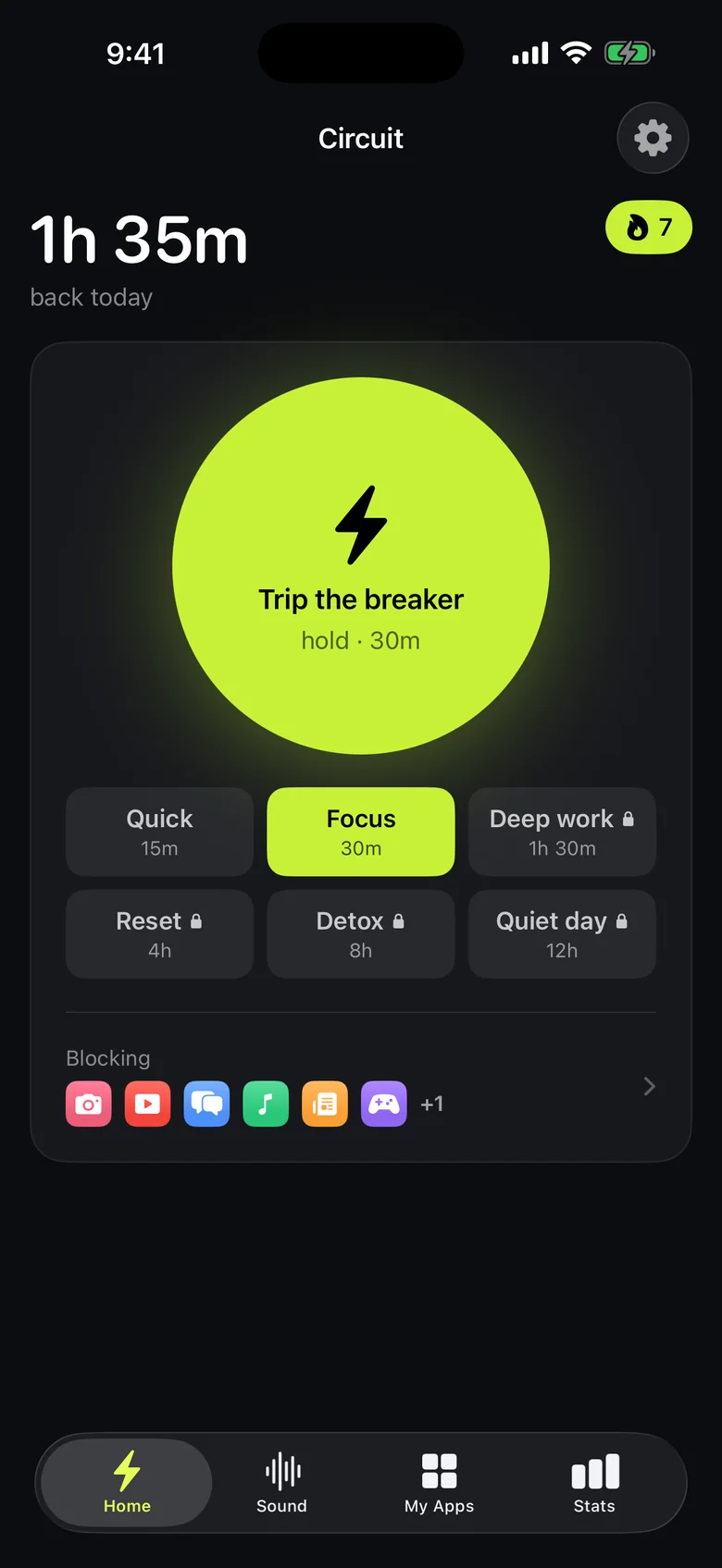
- For right now, hold the Breaker and choose 15, 30, 60 or 90 minutes or a whole day. It also works from Control Center, a widget and Siri, and the countdown sits on your Lock Screen.
- For every day, create a schedule — "Work, weekdays 9–17", "Sleep, 22:30–07:00" — and it runs without you.
- For no way out, turn on Strict Mode (Pro): the block runs to the end. Other blocks can be ended early only after a breath, a wait or a typed sentence.
Circuit is ours. Other good blockers take different approaches — a pause before opening (one sec, ScreenZen), or blocking across your laptop too (Freedom). They are compared in the best app blockers for iPhone in 2026.
Which method to use
- Someone else can hold the passcode → Screen Time. It's free and already on your phone.
- You'd switch it off yourself → an app blocker with a mode that can't be ended early.
- The problem is one time of day → a schedule, in either. Bedtime is the most common: how to block apps at night.
- You need a block right now → Circuit's Breaker, one hold from Control Center.
Get Circuit free — one schedule and blocks up to 30 minutes cost nothing.
Questions people ask
How do I block an app on my iPhone?
Use Screen Time or an app blocker. On iOS 27, go to Settings → Screen Time and set a Screen Time Schedule and Time Allowances. On iOS 26 and earlier, use Downtime or App Limits, and turn on Block at Downtime with a Screen Time passcode. An app blocker such as Circuit blocks chosen apps on a schedule or with one tap, with an option that can't be ended early.
Can I block an app on iPhone without deleting it?
Yes. Screen Time and app blockers make an app unavailable for a set time without deleting it; its data and your account stay as they are, and it opens again when the block ends.
Why can I still open an app after the Screen Time limit?
On iOS 26 and earlier, Apple's guide notes that Screen Time limits can be ignored once reached by default. Apps are only fully blocked during Downtime if you set a Screen Time passcode and turn on Block at Downtime.
What changed in Screen Time in iOS 27?
Apple's iOS 27 guide describes Screen Time Schedules, which set when during the day you can use apps, and Time Allowances, which set how long you can use app categories each day. Using them requires iOS 27 or later on all your Apple devices.
Is locking an app with Face ID the same as blocking it?
No. Require Face ID keeps other people out of an app, but your own face opens it in a second. To keep yourself out, you need a block that depends on the time, not on who is holding the phone.
Can I block apps on iPhone for free?
Yes. Screen Time is built in and free. Circuit's free version includes one schedule and blocks of up to 30 minutes, and ScreenZen is free with optional tips.
Ready to trip the breaker?
Free includes one schedule and the Breaker up to 30 minutes.