You open Facebook for a Marketplace listing, or to check a Group, and end up in the feed anyway — because every part of the app is one tap from it. Turning off individual notifications doesn't fix this: the app itself is the path back to the feed. Blocking Facebook outright sidesteps the problem instead of trying to negotiate with it.
The built-in way, and why it doesn't stick
Screen Time's App Limit for Facebook works the same way it does for every app: hit your daily minutes, and iOS offers you a one-tap way past it — "One More Minute," with no limit on how many times you can ask. It's a checkpoint you're allowed to wave yourself through.
Block it with Circuit instead
- Pick Facebook in Circuit's picker (Apple's system picker — Circuit only ever receives an opaque token for the app, not your activity inside it).
- For an immediate block, hold the Breaker and choose 15, 30, 60 or 90 minutes, or a whole day. Facebook closes and stays closed until the timer on your Lock Screen finishes.
- For the times you reach for it out of habit rather than need — evenings, or the first hour of the workday — set up a Circuit: a schedule that blocks it automatically, every day.
- If you know you'll just reopen Circuit and turn the block off, Strict Mode removes that option for the length of the session.
Circuit starts with a 7-day free trial — enough to find out if a real block changes anything before you decide whether Pro is worth it.
Get Circuit and make Marketplace and Groups reachable without the feed coming along with them.
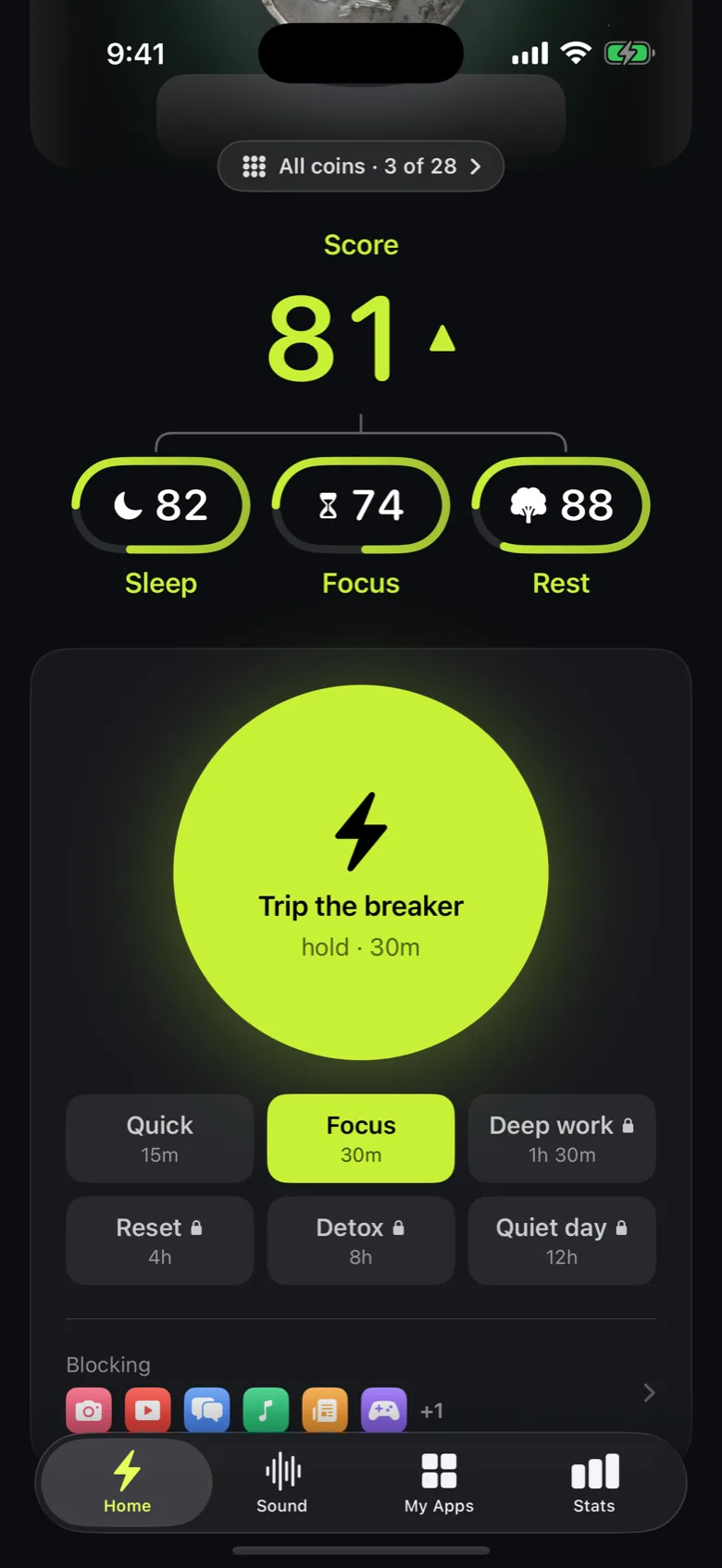
Ready to trip the breaker?
Try it free for 7 days, then $59.99 a year.