Opening the app to check "what's happening" rarely starts as a decision — it's closer to a reflex, one that fires during the exact dead moments (a queue, a red light, a pause in a conversation) where you'd otherwise just be bored for ten seconds. Blocking the app removes the option, which is the only thing that reliably breaks a reflex.
The built-in way, and why it doesn't stick
Screen Time's App Limit will cut you off from Twitter/X once you hit your daily minutes — until you tap the button on that same screen that grants another 15 minutes, with nothing stopping you from tapping it again after that. The limit resets your count, not your intent.
Block it with Circuit instead
- Select Twitter/X in Circuit's picker — Apple's system picker hands Circuit an opaque token for the app, never its name or what you post or read there.
- To block it right now, hold the Breaker for 15, 30, 60 or 90 minutes, or a full day. The app won't open again until the Lock Screen timer runs out, and there's no in-session button that adds more time.
- To stop the reflex before it starts, set up a Circuit for the hours it hits hardest — first thing in the morning, or during work.
- Strict Mode is for when the honest answer is "I'll just turn the block off": it removes that option for the length of the session.
Circuit starts with a 7-day free trial, enough to see whether removing the option actually changes the habit before you commit to anything.
Get Circuit and make checking "what's happening" something you have to decide to do, not something that just happens.
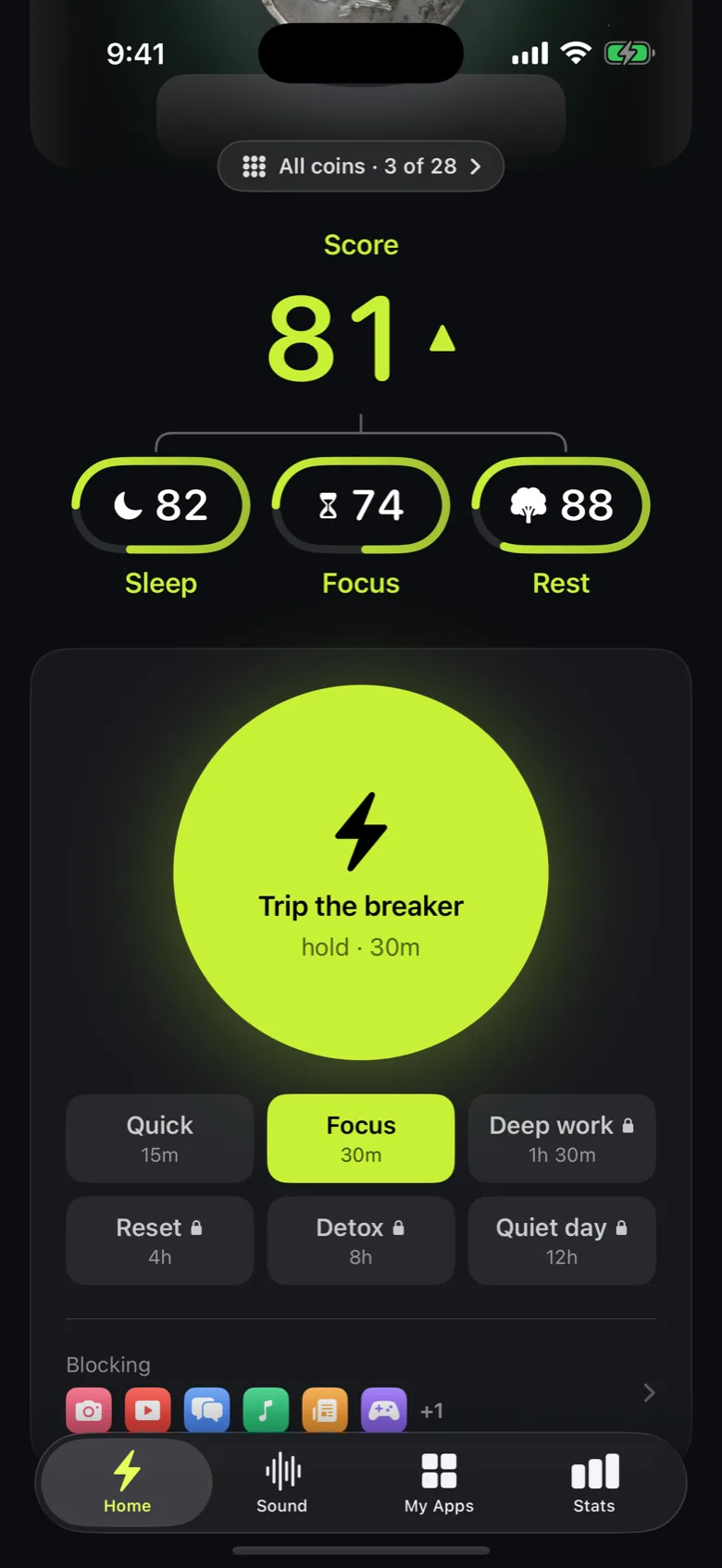
Ready to trip the breaker?
Try it free for 7 days, then $59.99 a year.