There's no natural stopping point in a For You feed — no last page, no end of the list, nothing that tells you it's time to put the phone down. That's not an accident, and it's also not a fight you can win by scrolling more carefully. The fix isn't a better feed, it's not being able to open the app at all during the hours it costs you the most.
The built-in way, and why it doesn't stick
Screen Time's App Limit can cap TikTok at, say, 30 minutes a day. The catch is the limit screen that shows up when you hit it comes with an "Ignore Limit" option right there on the same screen — no extra steps, no waiting period. A limit you can dismiss in one tap isn't really a limit, it's a reminder that you're about to go over.
Block it with Circuit instead
- Pick TikTok in Circuit's app picker (Apple's own system picker — Circuit gets an opaque token, not the app's name or your usage inside it).
- For right now, hold the Breaker and set 15, 30, 60 or 90 minutes, or a full day. TikTok closes and stays closed until the countdown on your Lock Screen hits zero — there's no "ignore" option once it's started.
- For the pattern that repeats — late-night scrolling, or the first hour after you wake up — set up a Circuit: a schedule that blocks TikTok automatically at the same time every day.
- Strict Mode removes the early exit entirely for a session. Useful if your actual pattern is opening Circuit itself to turn the block off five minutes in.
Circuit starts with a 7-day free trial — plenty to test on your worst TikTok hour of the day before deciding whether to pay.
Get Circuit and put an actual wall between yourself and the app, not a limit it can talk you out of.
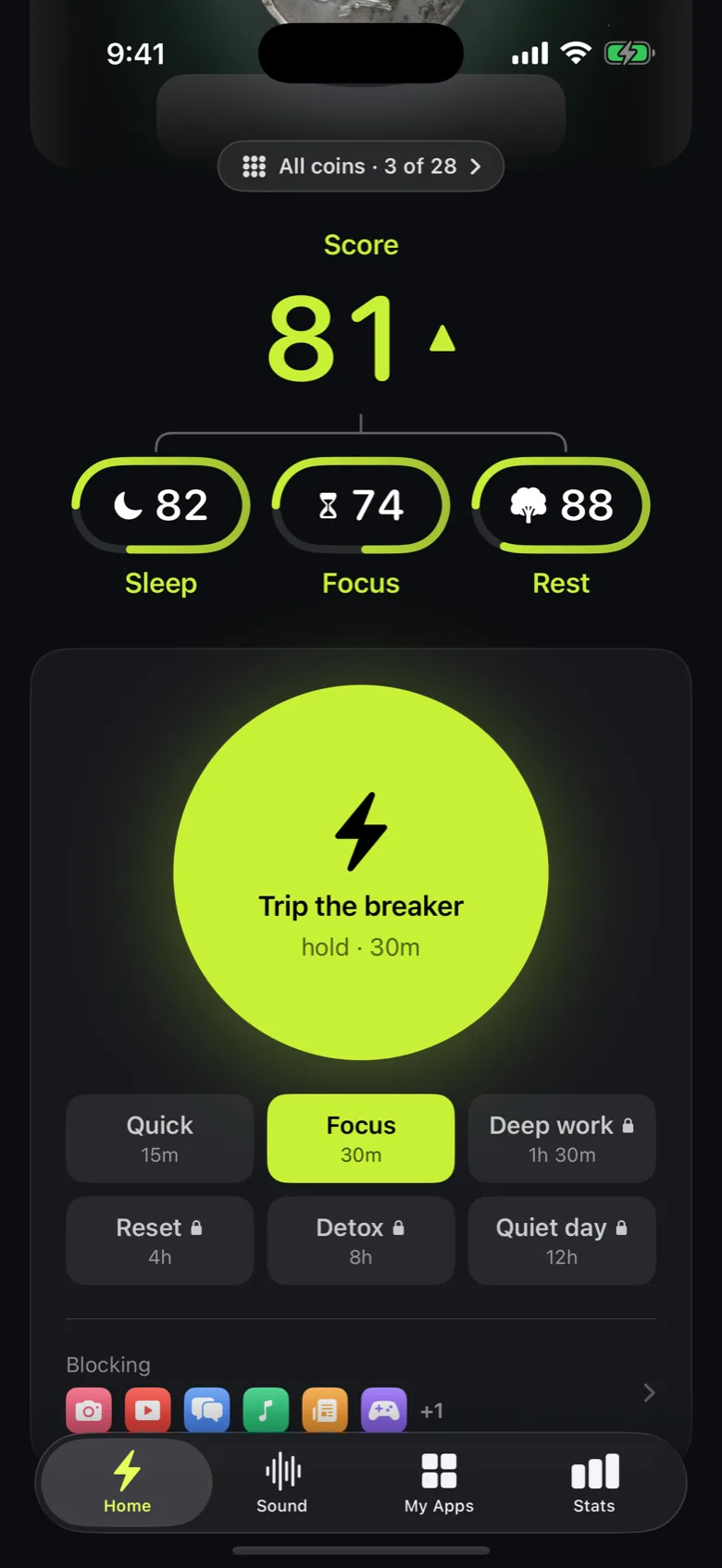
Ready to trip the breaker?
Try it free for 7 days, then $59.99 a year.