Short answer: an App Limit isn't broken — by default it is designed to be ignorable. When you hit it, iOS lets you carry on from the same screen. To make it stick you need a Screen Time passcode and the setting that blocks at the end of the limit; and if you set that passcode yourself, you still know it. That last gap is what app blockers exist to close.
Why the limit lets you through
Screen Time was built as a reminder first and a lock second. Apple's own guide says it plainly: unless you choose to block at the end of a limit, you can keep using the app once the limit is reached. The screen that tells you time is up is also the screen that offers you more — and it offers it every time, with no memory of how many times you said yes today.
Two settings that make Screen Time stricter
- Set a Screen Time passcode in Settings → Screen Time. Without one, the option below doesn't appear.
- Turn on blocking at the end of the limit for your App Limits, and blocking during Downtime for your schedule. Now a reached limit asks for the passcode instead of waving you through.
This works well when someone else holds the passcode — a partner, a friend, a parent. When you hold it, you are back to negotiating with yourself, one passcode entry at a time.
When an app blocker is the better fix
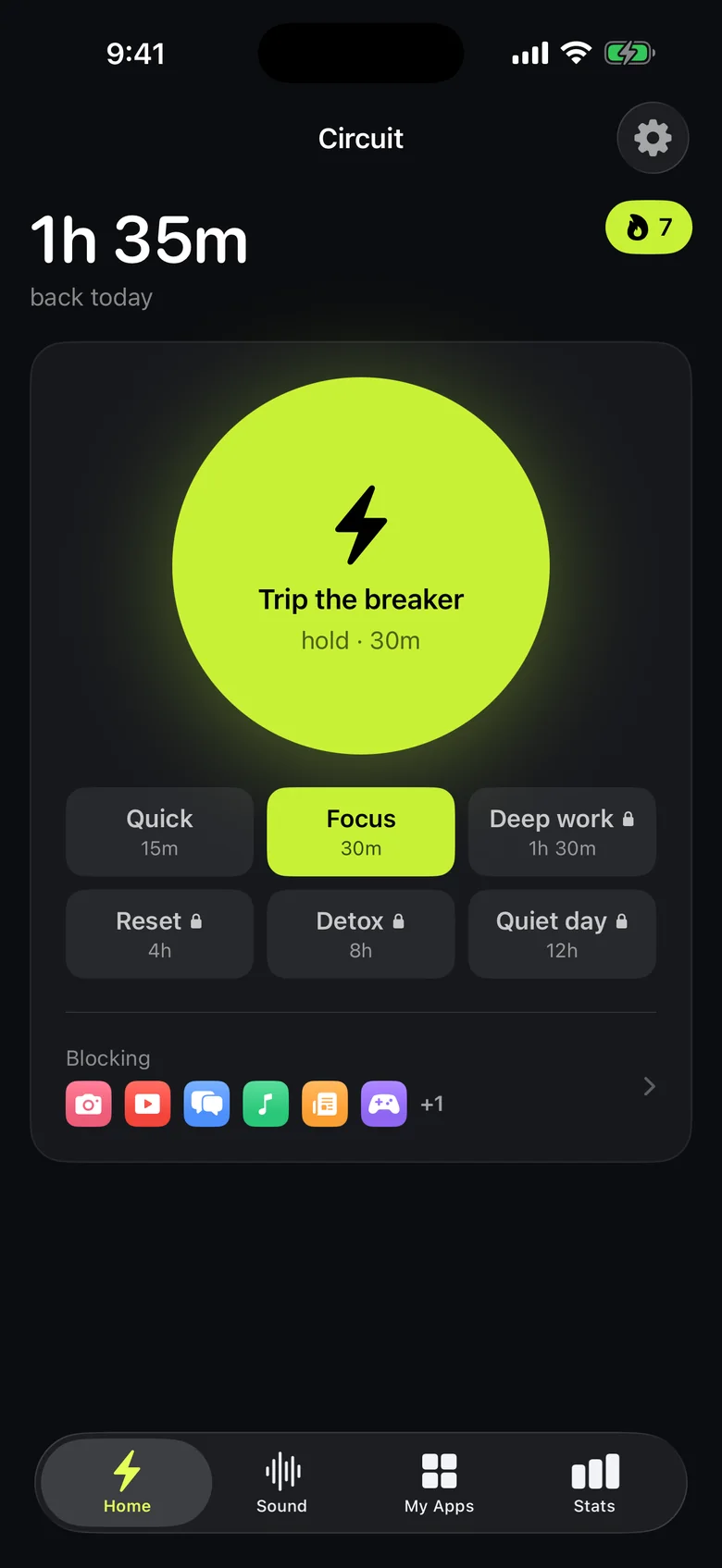
App blockers use the same Screen Time framework, so the block is enforced by iOS either way. What changes is the exit. In Circuit:
- A Strict Mode block has no early exit at all — no passcode to remember, nothing to type.
- A normal block can still be ended, but only after a breath, a wait or a typed sentence — enough to turn a reflex into a decision.
- The Breaker starts a block for 15 minutes to a whole day with one hold, from the app, Control Center, a widget or Siri; schedules turn on and off by themselves.
If a pause before opening suits you better than a block, look at one sec or ScreenZen instead — they're compared in the best app blockers for iPhone. And if a nightly cut-off is all you need, Downtime with the stricter settings above may be enough on its own, for free.
Try Circuit free — one schedule and blocks up to 30 minutes cost nothing.
Questions people ask
Why can I ignore my Screen Time limit?
Because that is how App Limits work by default: when a limit is reached, iOS lets you continue from the same screen. Screen Time only blocks at the end of a limit if you turn that on, and that option needs a Screen Time passcode.
How do I make Screen Time limits strict?
Set a Screen Time passcode, then turn on blocking at the end of the limit for App Limits and blocking during Downtime. With those on, a reached limit asks for the passcode instead of letting you continue.
What if I know my own Screen Time passcode?
Then the passcode only adds a step. Common fixes are asking someone else to set it, or using an app blocker whose sessions can't be ended early, such as Circuit's Strict Mode.
Do app blockers replace Screen Time?
They run on it. Circuit and similar apps use Apple's Screen Time framework, so iOS enforces the block; the app decides when a block starts and whether you can end it early.
Ready to trip the breaker?
Free includes one schedule and the Breaker up to 30 minutes.