
Short answer: on iOS 18 and later, touch and hold an app and choose Require Face ID. That locks the app against other people. If the person you want to keep out is you, a lock won't help — your face opens it. You want a block: the app is unavailable until a time you chose.
Locking an app (keeps others out)
- Touch and hold the app icon on the Home Screen.
- Choose Require Face ID (or Touch ID / passcode on your device).
- From now on the app asks to authenticate every time it opens. You can also hide an app, which moves it into a locked Hidden folder in the App Library.
Ideal for a banking app, photos or messages when someone borrows your phone. Useless against your own habits: the lock takes a glance.
Blocking an app (keeps you out)
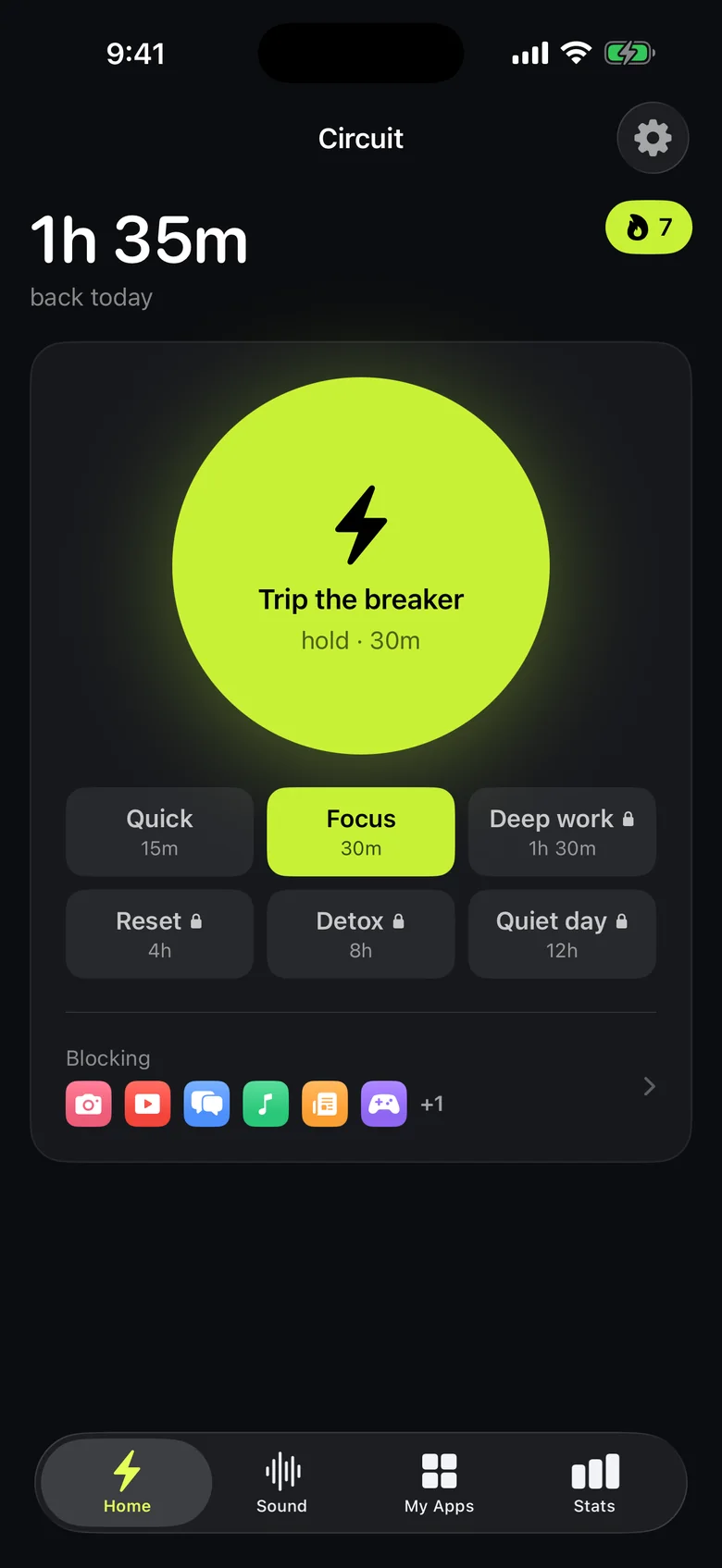
A block doesn't ask who you are; it asks what time it is. With Circuit:
- Pick the apps in Apple's picker.
- Hold the Breaker for 15 minutes to a whole day (free goes up to 30 minutes), or set a schedule that turns on by itself.
- Turn on Strict Mode (Pro) for blocks you don't want a way out of. Other blocks can be ended early only after a breath, a wait or a typed sentence.
Get Circuit — the lock for the apps you can't keep yourself out of.
Questions people ask
How do I lock an app on iPhone?
On iOS 18 and later, touch and hold the app icon and choose Require Face ID. The app then asks for Face ID, Touch ID or your passcode every time it opens.
Can I lock an app so I can't open it myself?
A Face ID lock won't do that, because your face unlocks it. To keep yourself out, block the app for a period of time with Screen Time or an app blocker such as Circuit, whose Strict Mode can't be ended early.
Ready to trip the breaker?
Free includes one schedule and the Breaker up to 30 minutes.